Blogs

Mark Miller

Slicing and Dicing Strings with CodeRush for Visual Studio

     

CodeRush brings powerful string manipulation features to Visual Studio. Here are a few of my favorites:

Splitting Strings

When you need to break a string literal into two or three pieces. For example, let’s start with the following text:


public string GetGreetingText(int daysLeft)
{
  return "Welcome back, customer. \nSo glad to see you. Days remaining on our special offer: " + daysLeft.ToString();
}

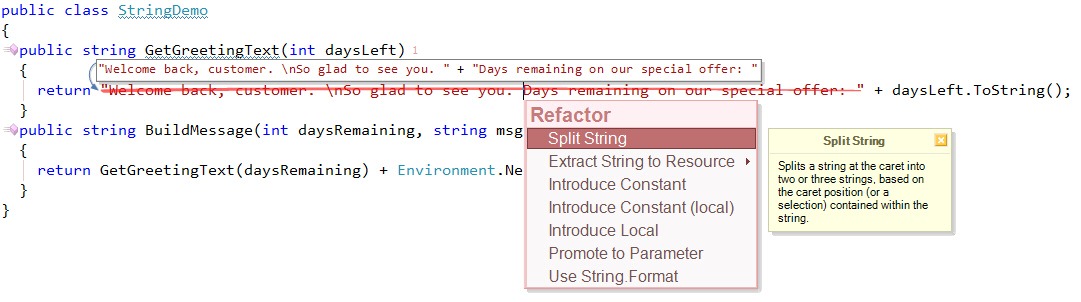
I can place the caret (the flashing I-beam that marks the editor’s insertion point) right before “Days remaining” text and press the CodeRush/Refactor! key (Ctrl+` by default) and then choose Split String.
SplitStringInto2

This will split the string into two pieces.

Next, let’s select the last two expressions on this line:

SelectLastExpression

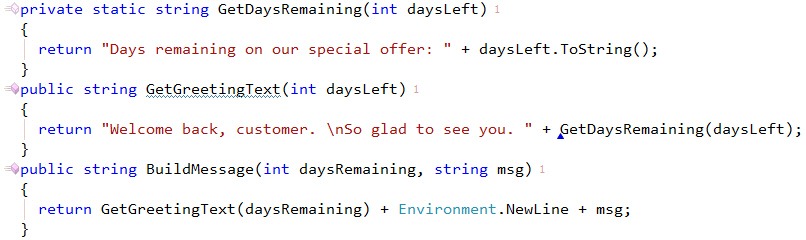
Press the CodeRush/Refactor! key, and choose Extract Method to create a new method called GetDaysRemaining, like this:
GetDaysRemaining

Use String.Format

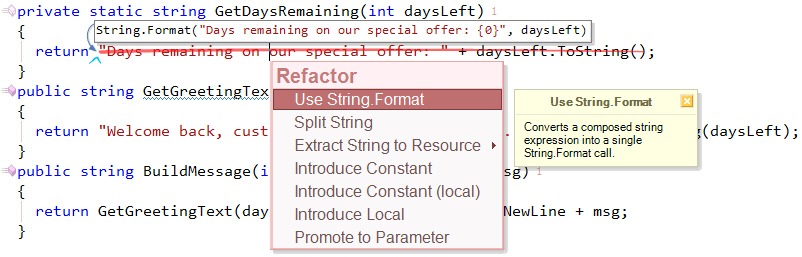
Next, move the caret down inside the string inside the GetDaysRemaining method. Press the CodeRush/Refactor! key and select Use String.Format.
UseStringFormat

This neatly combines the concatenation into a single string that is easy to read and so much easier to translate (translating string fragments is much harder to do when grammatical rearrangements are needed as part of the localization).

Speaking of translation…

Extract String to Resource

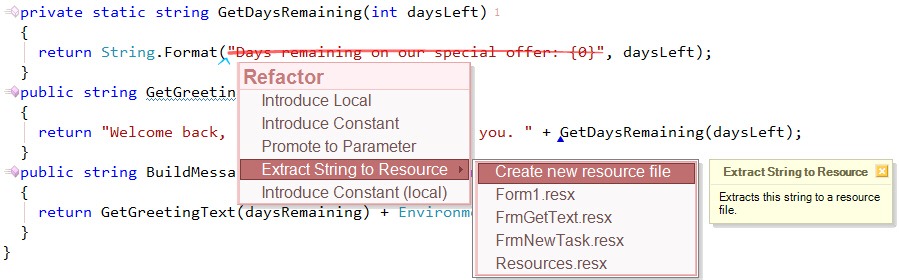
Move the caret inside the “Days remaining…” string. Press the CodeRush/Refactor! key and select Extract String to Resource, then select “Create new resource file”.
ExtractStringToResource

CodeRush will create a new resource file to hold this string, and highlight the resource identifier for an easy rename (tip: I like to use Camel Case Nav and Camel Case Select – Alt plus Left or Right arrow keys with Shift to select -- to quickly trim a long identifier down to a reasonable size). Let’s call this resource “DaysRemaining”.
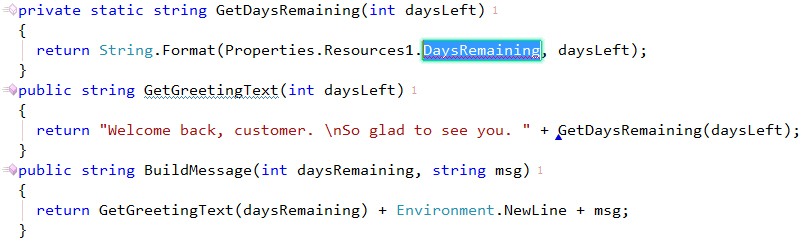
DaysRemainingResource

Placing strings in resource files is a good first step to preparing your code for translation.

Splitting Strings, Revisited

The CodeRush Split String refactoring has a bonus feature built in: the ability to split a string into three pieces. Just select the portion of the string that you want to pull out and apply the refactoring. For example, in the code above, there is a “\n” appearing inside the string. This “\n” may be confusing to translators, it makes the string harder to read, and it may not be the most appropriate way to terminate lines on some platforms, so let’s take it out and replace it with the Environment.NewLine expression.

First, select the “\n”:

SelectSlashN

Press the CodeRush/Refactor! key and select Split String

ApplySplitStringIntoThree

Applying the refactoring will leave you with this:

SplitStringInto2Applied

Notice the “\n” string fragment is selected for easy editing. Now we can use CodeRush’s “enl” template to replace the “\n” with a proper Environment.NewLine expression.

AfterEnvironmentNewLine

Introduce Format Item

See that “Welcome back, customer.” string in the code above? It would be great if we could actually pass in the customer’s name in place of the text “customer”. That would make the greeting certainly more personal. It’s easy to do this with CodeRush. Just select the part of the string that you want to replace, and press the CodeRush/Refactor! key, like this:
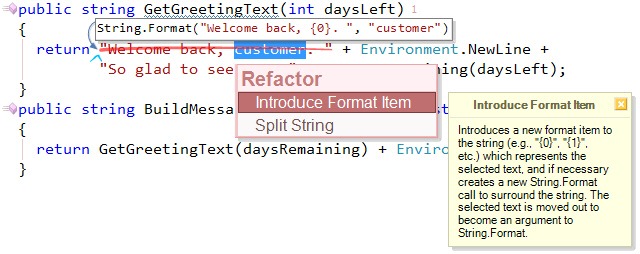
IntroduceFormatItemPreviewHint

Apply the Introduce Format Item refactoring to get this:

AppliedIntroduceFormatItem

Notice that once again the extracted string is selected for easy editing. Now let’s promote this string to a parameter. Press the CodeRush/Refactor! key and select Promote to Parameter.
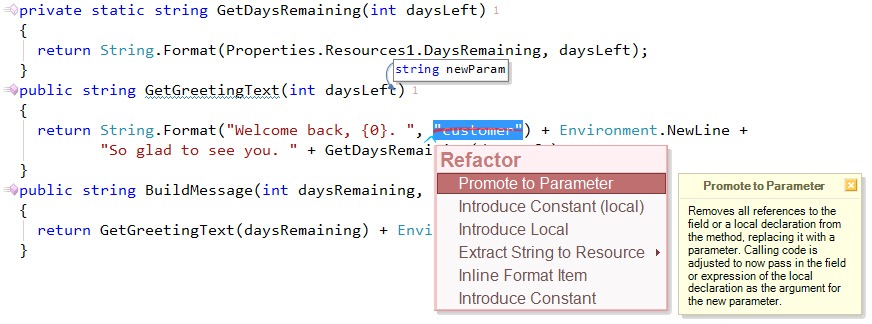
PromoteToParameter

And give the new parameter a meaningful name, like customerName:

PromoteToParameterAfterRename

Converting Text to Strings

Sometimes you need to work with a text coming from another environment, and that text span several lines or contain quote characters (that would need to be escaped). So in this example I used the “ms” template to create a method that returns a string, and I expanded the “r” template to get the return keyword and then I pasted in some XAML code that creates a TextBlock:

private string GetTextBlock()
{
  return <TextBlock
  Canvas.Left="25" Canvas.Top="5"
 
Foreground="Teal" FontFamily="Verdana" FontSize="18" FontWeight="Bold"
 
Text="Sample Output" />;
}

Of course this code will not compile. Fortunately we have CodeRush installed so getting it into its desired shape is easy. Just select the text we want to convert, press the CodeRush/Refactor! key and select Embed Selection | To string, like this:

EmbedString

CodeRush will convert the text into a string, like this:

ConvertToString

Nice. Notice how the quotes are properly escaped and the separate lines are now concatenated together.

Now, suppose you wanted to parameterize some of the values in this string. For example, turn the “Sample Output” into a “text” parameter. How would you do that? Well, you should already know how. Just select the text, split the string, and promote it to a parameter.

Wrapping Up

If you’re not already using CodeRush, you should be. This post has covered only a portion of the tools and features that work with strings, and working with strings is only a very small tip of the very large iceberg of power that is CodeRush. CodeRush is the fastest, most powerful, and most memory-efficient developer productivity add-on available for Visual Studio.

Published Mar 09 2010, 01:51 PM by Mark Miller (DevExpress)
Bookmark and Share

Comments


Brendan Kowitz said:

Use String.Format: Awesome.

Extract String to Resource: Awesome.

Introduce Format Item: Awesome.

Promote to Parameter: Awesome.

Split String: Yeah.

To String: :(

I know 'each to their own', however every time I see the multi-line concatenated strings I just get flashes of the massive inline sql queries I used to see in older codebases, maintenance. nightmare.

At least wouldn't it be better to use the string literal '@' to format multi-line strings? This also avoids having to concatenate. Eg.

return @"<TextBlock

 Canvas.Left=""25"" Canvas.Top=""5""

 Foreground=""Teal"" FontFamily=""Verdana"" FontSize=""18"" FontWeight=""Bold""

 Text=""Sample Output" />";

March 9, 2010 8:51 PM
 

Steve Sharkey said:

Keep them comming - I tend to use articles like this to "discover" activities I generally do by hand that Code Rush offers and then incorporate them into my coding. It's one of those things that to maintain productivity I need to add to my "toolset" one feature at a time. I know I under utilise CodeRush but only discover the extent to which I use it when faced with a machine that doesn't have it.

March 10, 2010 2:39 AM
 

Scott Blood_1 said:

More More More

I absolutely love this product since i started using it just over a few months ago, but being a very busy developer, i just dont have the time to read the documentation in any timely manor and these blog posts are brilliant.

Scott

March 10, 2010 2:57 AM
 

Peter Thorpe said:

Thanks for letting us know what the caret is :P

March 10, 2010 6:08 AM
 

Dew Drop – March 10, 2010 | Alvin Ashcraft's Morning Dew said:

Pingback from  Dew Drop – March 10, 2010 | Alvin Ashcraft's Morning Dew

March 10, 2010 8:26 AM
 

Joe Writes Code said:

Slicing and Dicing Strings with CodeRush for Visual Studio

March 10, 2010 9:50 AM
 

Gerhard Weiss said:

Here I thought the caret was something Bugs Bunny was always eating. Oh wait, that was a carrot. :)

March 10, 2010 4:45 PM
 

Alan Taylor said:

Is there any way to use 'string' instead of 'String'?

March 11, 2010 2:44 AM
 

John Solgat said:

Wouldn't this:

return "<TextBlock" +

            "Canvas.Left=\"25\" Canvas.Top=\"5\"" +

            "Foreground=\"Teal\" FontFamily=\"Verdana\" FontSize=\"18\" FontWeight=\"Bold\"" +

            "Text=\"Sample Output\" />";

Return this:

<TextBlockCanvas.Left="25" Canvas.Top="5"Foreground="Teal" FontFamily="Verdana" FontSize="18" FontWeight="Bold"Text="Sample Output" />

I don't believe that TextBlockCanvas.Left is valid. I would think some spaces or Environment.NewLines would be in order.

March 12, 2010 4:26 PM
 

Mark Miller (DevExpress) said:

John, Brilliant observation! Yes, you would definitely need to add white space by hand as needed, *OR* you can modify the To String embedding.

Follow these steps to get to the Embedding options page:

1. From the DevExpress menu, select "Options...".

2. In the tree view on the left, navigate to this folder:

   Editor\Selections

3. Select the "Embedding" options page.

4. Select the "To String" embedding.

5. On the "Selected Text" line in the text box to the right, add a single space before the quote.

6. Click OK.

March 12, 2010 8:12 PM
 

Sander Wollaert said:

Mark,

It's been a long time coming, but ... I've been using CodeRush in VS2010 daily for the past 9 months or so. Love it.

All the best,

-Luk-

March 15, 2010 3:03 AM
 

Steve said:

I'll echo what Alan Taylor said.

I'm a huge fan of writing my string concatenation with plusses and then just converting to String.Format via coderush, but it's annoying to have to always change it to all lower case "string" (my stylecop rules prohibit String in favour of string)

There's probably a setting, but I just can't find it :(

March 15, 2010 3:38 AM
 

Mark Miller (DevExpress) said:

Steve, Alan, we hear you, and we expect to bring you this option in 10.2.

March 24, 2010 5:19 PM

About Mark Miller (DevExpress)

Mark Miller is a C# MVP with strong expertise in decoupled design, plug-in architectures, and great UI. Mark is Chief Architect of the IDE Tools division at Developer Express, and is the visionary force behind productivity tools like CodeRush and Refactor!, as well as the DXCore extensibility layer for Visual Studio. Mark is a popular speaker at conferences around the world and has been writing software for over two decades.
More from DevExpress
Live Chat
Have a pre-sales question?
Need assistance with your evaluation?
We are here to help.
Chat is one of the many ways you can contact members of the DevExpress Team. We are available Monday-Friday between 8:30am and 5:00pm Pacific Time.
If you need additional product information, require pre-sales assistance, or want help with your order, write to us at info@devexpress.com or call us at
+1 (818) 844-3383.